
Use this article to assist you while filling in each required field of the 10DLC Campaign Registry Form. You will submit your organization as a Brand, and your SMS use case will be submitted as a Campaign. Once verified by The Campaign Registry, you can send SMS messages to U.S. numbers.
Setting up a new campaign requires you to select a campaign type (use case). Pricing differs by campaign type.
Unsure what campaign type to choose?
If you’re unsure which campaign type is right for you, review the available options in this article. A member of our Customer Success team can also review your use cases and answer questions.
Email success@net2phone.ca to open a ticket. A member of our Customer Success team will respond within 1 business day to schedule a call.
Provincial digit-length requirements
Each Canadian province has its own system for registering businesses, and identification numbers can vary by province. To confirm what your province requires, refer to Canadian provincial business registration requirements .
Step 1: Brand Registration
Fill out the form. A red asterisk (*) indicates a required field.
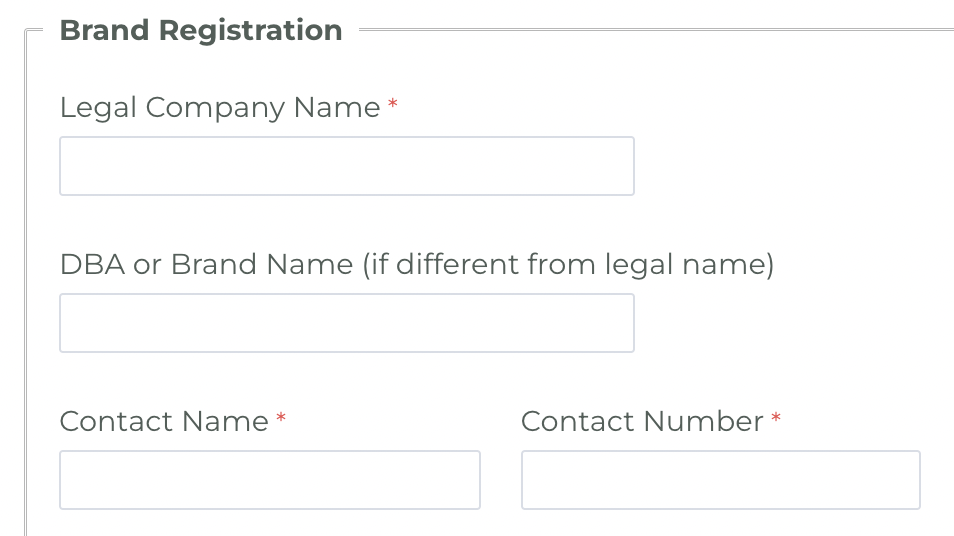
Legal Company Name — The legal name your company or organization uses (the name used in contracts and invoices).
DBA or Brand Name (if different from legal name) — DBA stands for “doing business as.” This is the name your clients/customers recognize. If your Legal Company Name is also your Brand name, leave this field blank.
Contact Name — Your name, or the name of the designated contact from your organization.
Contact Number — Your number or the designated contact's phone number from your organization.
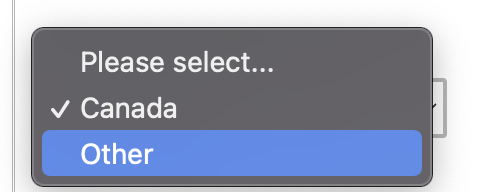
Country of Registration — The form is set to Canada by default. If you are outside of Canada, click Other and enter your country, as shown below.

Step 2: Legal Information
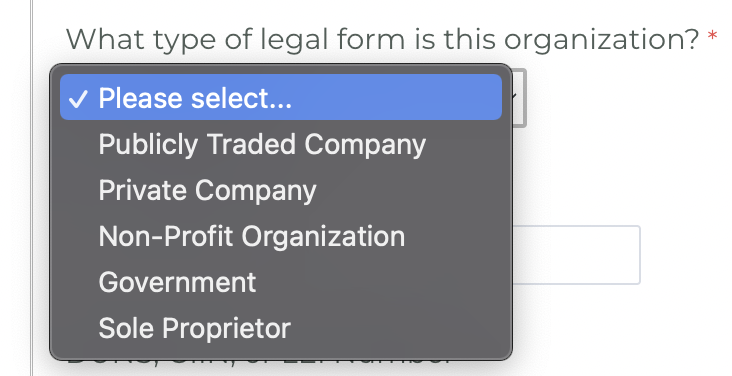
What type of legal form is this organization — Some campaign types are restricted based on organization type.
The legal form-type field includes the following options from a drop-down menu:
- Publicly Traded Company — A publicly listed company whose ownership comprises shares intended for free trade.
- Private Company — A company held under private ownership (not publicly traded).
- Non-Profit Organization — A legal entity that operates for a public, social, or mutual benefit.
- Government — An organization operated by the governing body of an area.
- Sole Proprietor — A single person with exclusive ownership of a business.
Tax Number/ID — The Campaign Registry needs a tax ID number to verify organizations in the U.S. If your primary business registration is in Canada, enter your Canadian corporation number (federal or provincial).
DUNS, GIIN, or LEI Number — Formats for registered business numbers.
- D-U-N-S Number (DUNS) — A number issued by Dun & Bradstreet (D&B).
- GIIN — A Global Intermediary Identification Number assigned to a participating foreign financial institution (PFFI).
- LEI — A Legal Entity Identifier.
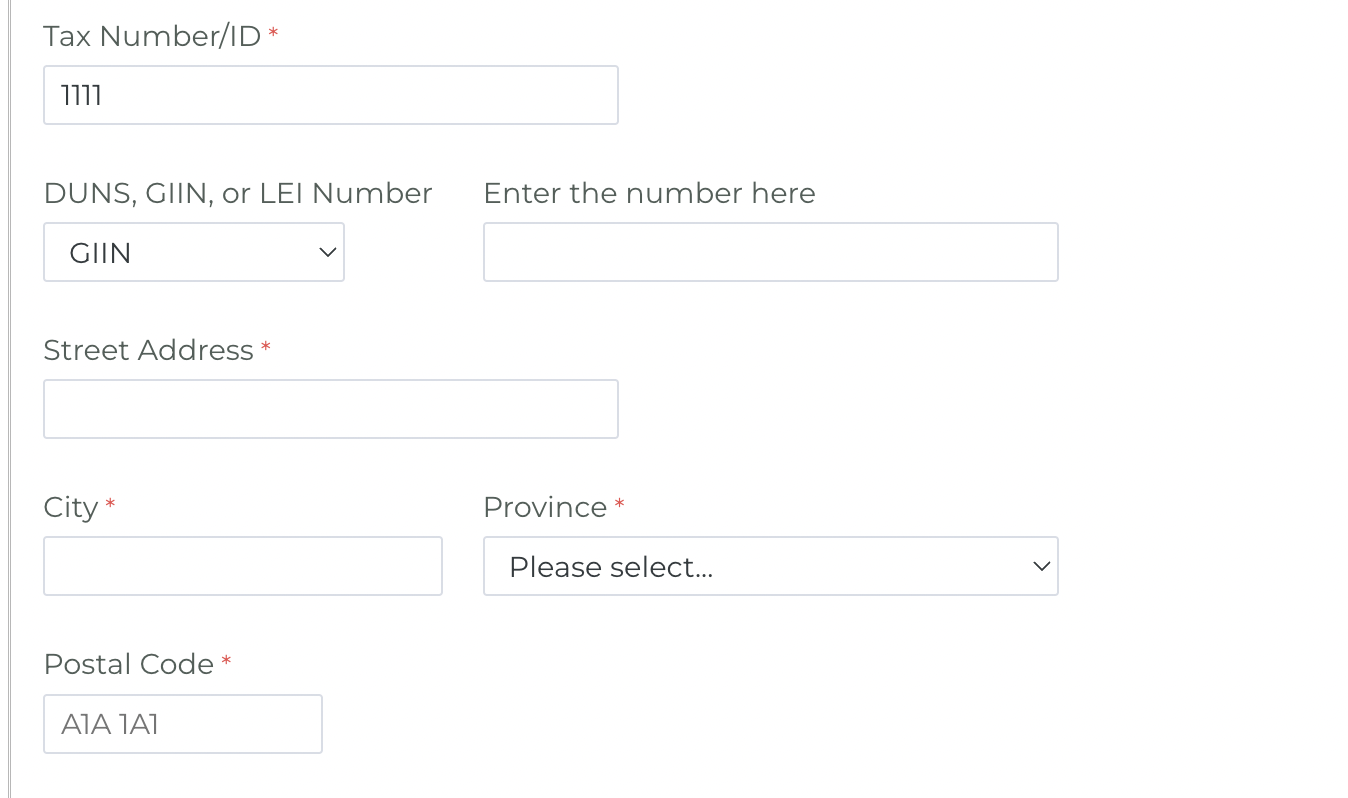
To finish this page of the form, enter the full address of your organization. If you want, you can also add a website link and your industry.

Click Next Page. The second page of the registration form is specific to your SMS campaign type.
Step 3: Campaign Registration
Phone Number Associated with this Campaign — Enter the phone number you will use to send A2P messages.
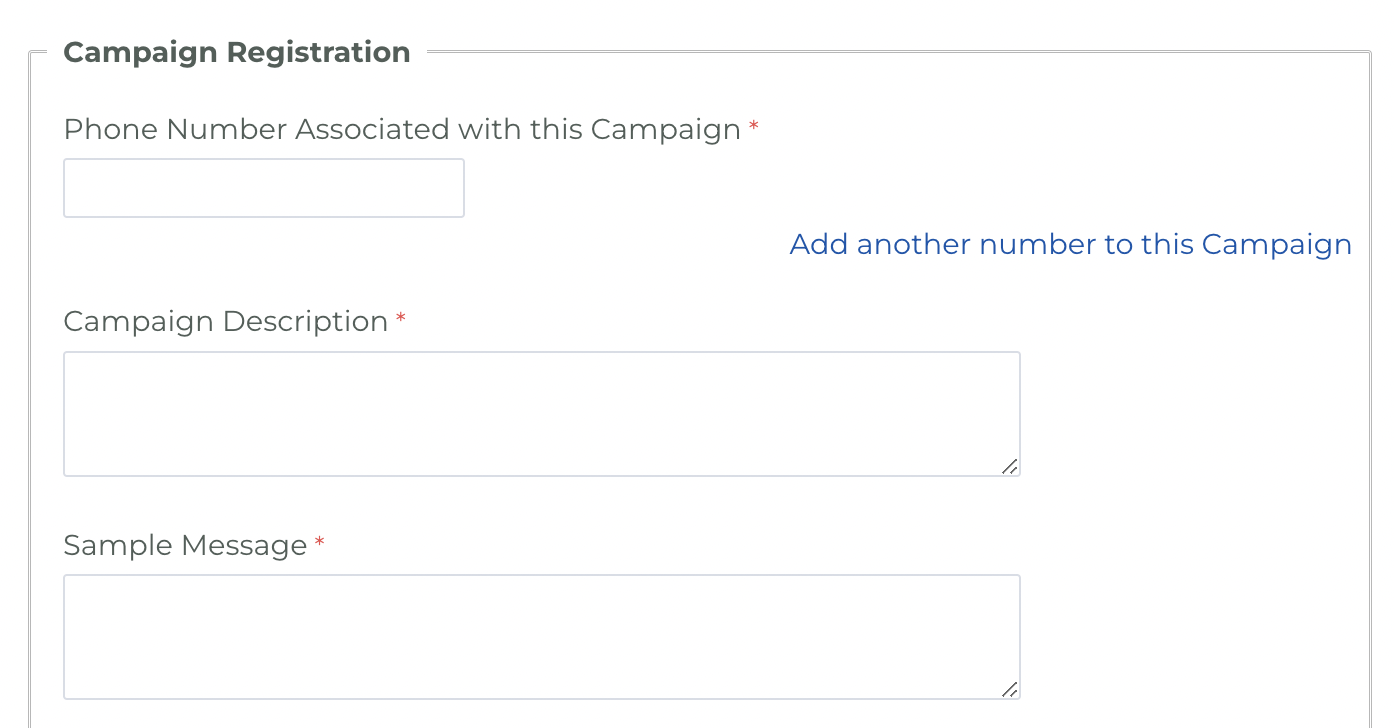
Add another Number to this Campaign — If you have multiple SMS numbers you want to use for A2P messaging, click this option to add additional numbers.
Campaign Description — A brief explanation of your SMS use case.
Example: “Sending appointment confirmation messages.”
Sample Message — An example of an A2P message you would send.
Example: “Your appointment is booked for 10:00.”
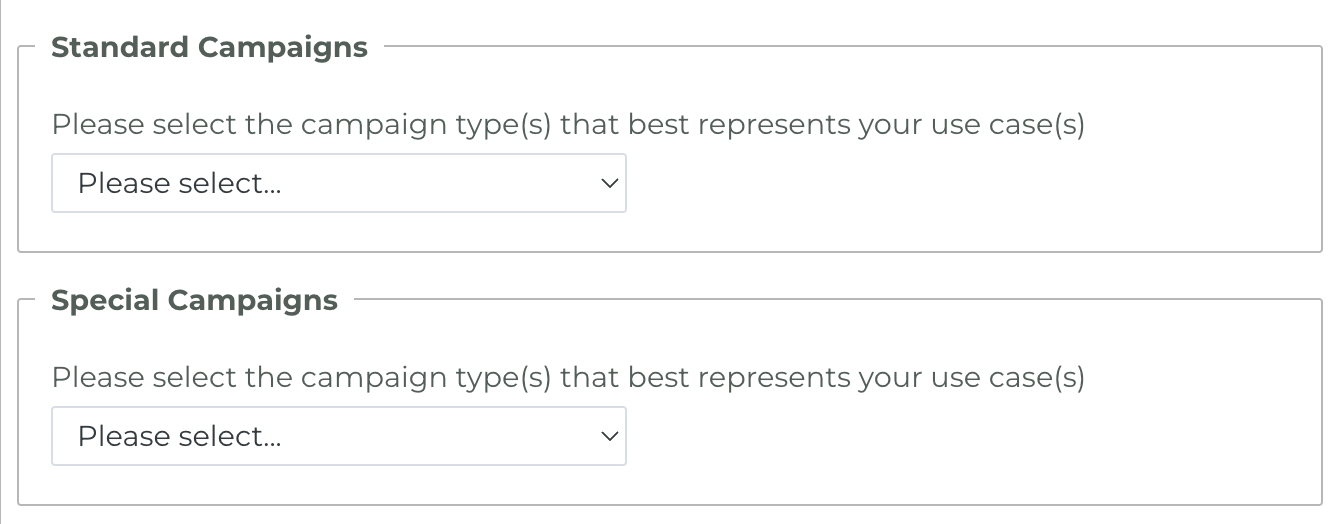
Under Standard and Special Campaigns, select the checkbox for your desired campaign type(s).
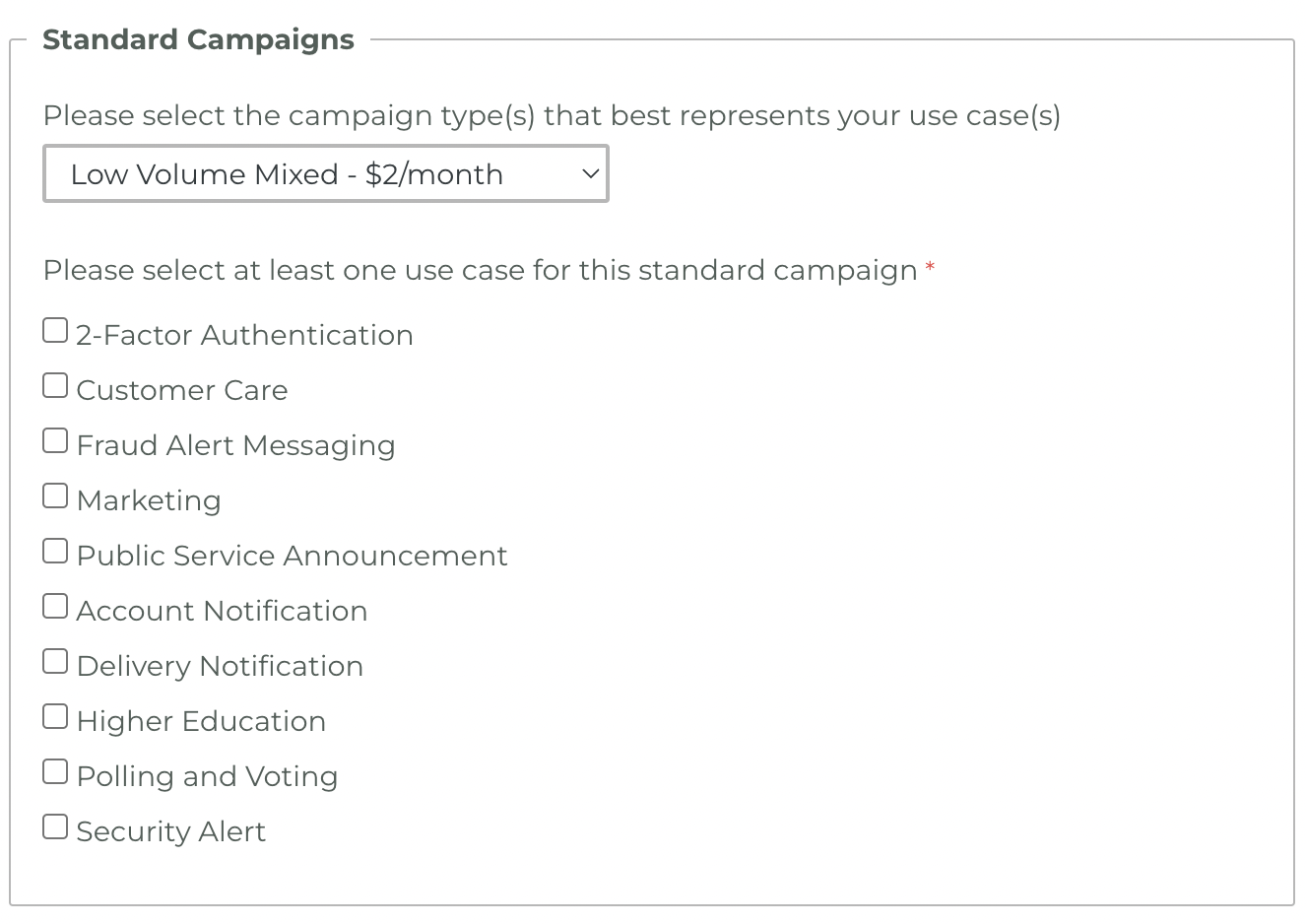
Low-Volume Mixed Campaign
If you choose Low-Volume Mixed Campaign, you must select at least 1 use case. To review the campaign types, refer to this article.
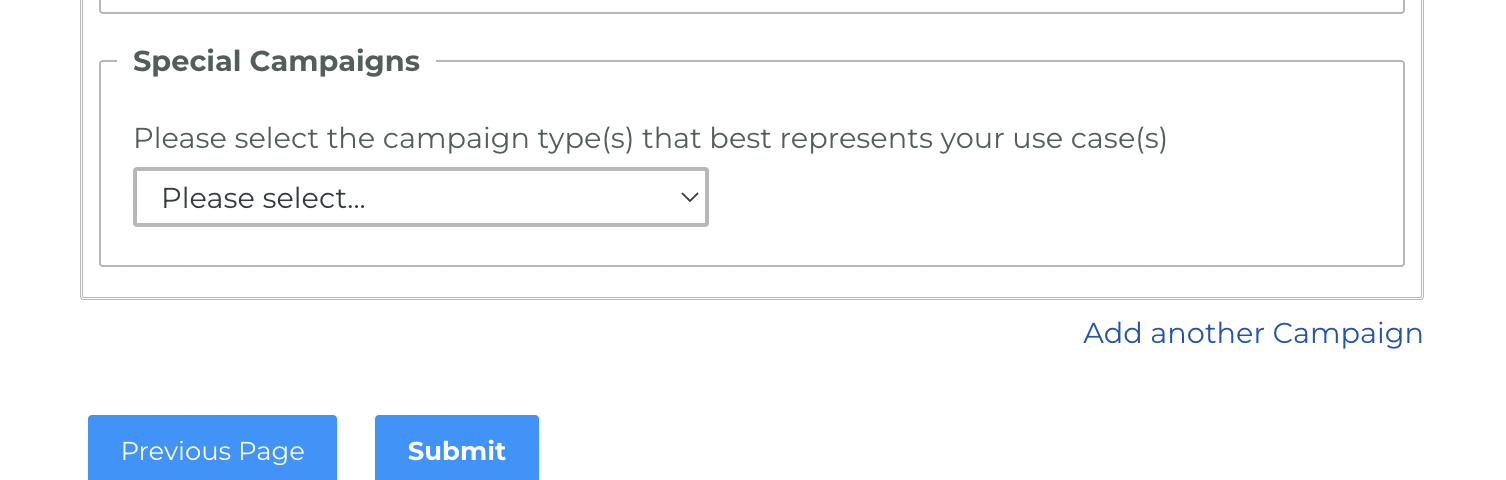
Add another Campaign — At the bottom of the page, you can add another campaign type. This duplicates the Standard and Special Campaign sections so you can register multiple campaign types.
Step 4: Submit and Wait for Approval
Click Submit to complete your registration.
All campaign registrations are subject to a vetting process. For standard use cases, approval typically takes 1–7 business days.