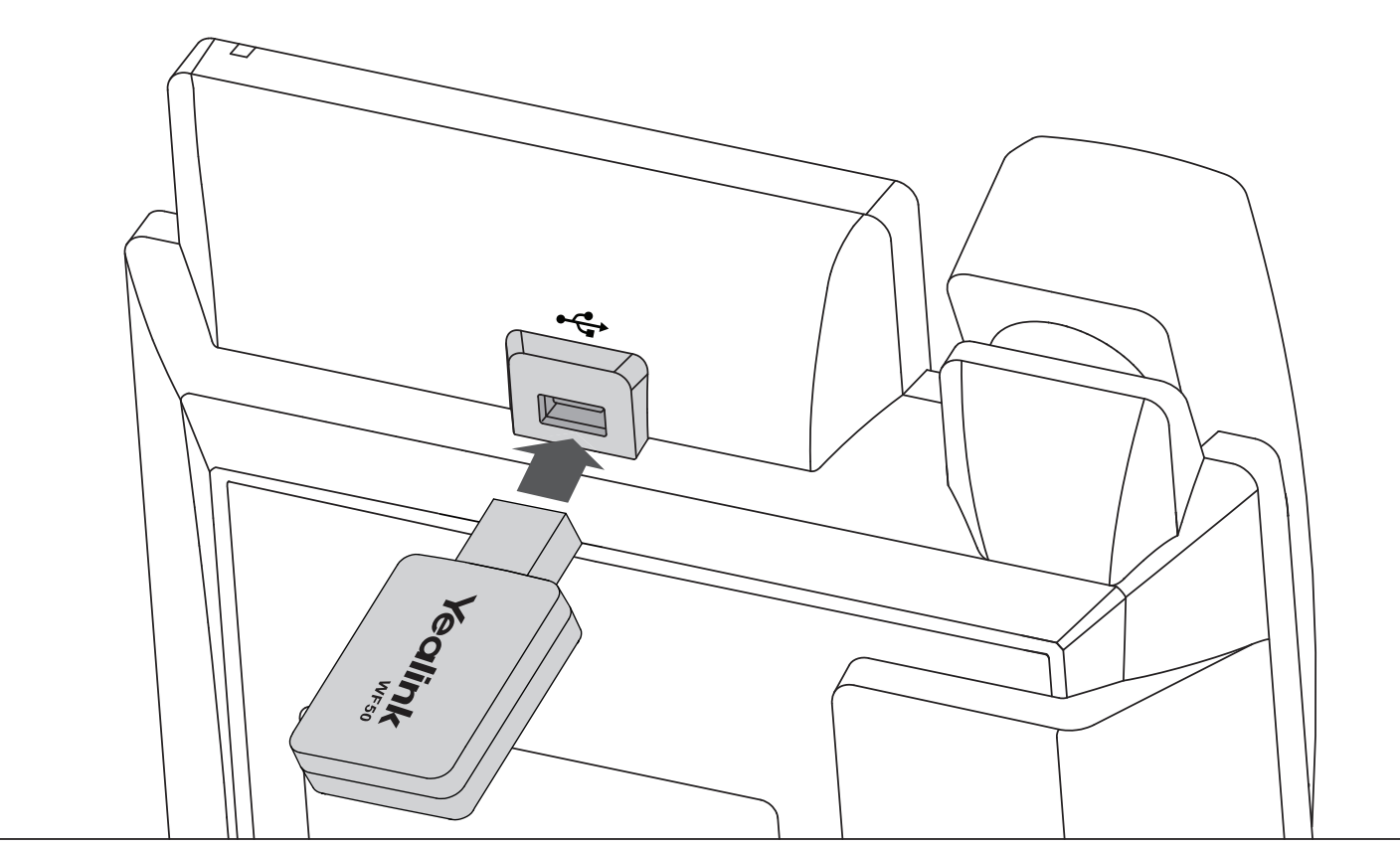
The Yealink WF50 WiFi USB adapter allows supported Yealink desk phones to connect to a wireless network instead of using an Ethernet cable.
Supported models
The WF50 adapter is compatible with the following Yealink desk phone models:
- Yealink T43U
- Yealink T46U
Connect to WiFi using the WF50 adapter
If your phone is not connected to a network, the display may show “No Service” until you enable and connect to a WiFi network, as described below.
- Insert the WF50 adapter into the USB port on the back of the phone.
- On the phone, navigate to:
- Menu,
- Basic,
- Wi-Fi.
- Set WiFi to On.
- Select your wireless network from the available list.
Note for T43U phones: If your network does not appear, select Known Network and manually enter the SSID. - Enter your WiFi password and confirm.